
Cyber Attacks: A Practical Account and Device Safety Guide
Understand phishing, unique passwords, MFA, updates and recovery with practical student examples, trusted guidance and a manageable security routine.

A cyber attack is an attempt to misuse a digital system, account or information. For a student, it may begin with an ordinary-looking message: a fake scholarship application, a shared assignment file or a warning that a school account will close. The practical defence is to verify the request, protect sign-in and recovery methods, and keep devices supported and updated.
This guide explains common attack patterns and a manageable protection routine for students and families in Pakistan. It does not report a newly confirmed national incident, offer offensive hacking instructions or promise that any checklist makes a device impossible to compromise.
Start with the account you cannot afford to lose
Your main email account often acts as the recovery route for other services. If somebody controls it, they may be able to request password resets elsewhere. Securing a rarely used app while leaving the recovery email exposed can therefore miss the most important link in the chain.
List the accounts you actually depend on: email, school portal, cloud documents, messaging and any payment service. Identify how each can be recovered and whether that recovery method is still yours. Do not record passwords in this inventory; account names and recovery-method labels are enough for the planning exercise.
The point is to prioritise work. You do not need to solve every possible computer-security problem before improving anything. Start with the accounts that would stop your study or expose sensitive information if you lost access, then work outward to less important services.
What does phishing look like?
Phishing tries to persuade someone to disclose information or take an unsafe action by pretending to be trustworthy. The message can arrive by email, text, social media or another channel. It may ask for a login, payment, identity document or the installation of a supposedly necessary file.
Imagine a fictional message saying that your examination form will be cancelled in ten minutes unless you sign in through a new link. The urgent language is a warning sign, but the decisive check is whether the request can be verified through the institution's established website or contact route.
Good spelling does not prove authenticity. Neither does a familiar logo or the sender's display name. A careful recipient asks where the request leads, what information it demands and whether the institution confirms it through a channel independent of the suspicious message.
Verify through a different route
If a message claims to come from your school, open the school portal using a saved trusted address or an address you independently know. Do not use the message's contact number as the sole method of confirming the message itself. An attacker can control both the link and the number printed beside it.
The same approach applies to a message from a classmate. Contact the person through a known route and ask whether they actually sent the file or request. Their account may have been misused, so a familiar name in a group chat does not remove the need for verification.
This is not an instruction to ignore every urgent notice. It is a way to handle urgency without letting it choose your source of truth. A real institution can confirm a real requirement without needing you to surrender a password to an unfamiliar page.
What should you do with suspicious attachments?
Do not open an unexpected attachment merely because its filename mentions notes, results or an assignment. A file's name is a label supplied by whoever sent it. The label alone does not establish the file's actual format, safety or origin.
Use the institution's established document-sharing method and keep the software that opens documents updated. If a file demands unusual permissions or tells you to disable protections to view ordinary study material, stop and verify the request before proceeding. Do not grant powerful access simply to get past an obstacle quickly.
A useful class rule is to share ordinary learning documents in a predictable place with clear ownership. That reduces confusion when a malicious message imitates a resource. It also makes it easier for students to recognise that a new download route needs checking.
Why reuse of passwords creates a wider problem
If the same password protects several services, its exposure on one can endanger the others. The problem is not limited to a person guessing the password from your name. Credentials obtained elsewhere can be tried against another account where you reused them.
Use a unique password for each important account and consider a reputable password manager to generate and store them. The manager itself and its recovery arrangement also need protection. Do not move the whole problem into a weak master password or a recovery method you no longer control.
For the account inventory, mark only whether uniqueness has been addressed. Never paste the real passwords into a school spreadsheet, a class chat or an online “strength test.” The exercise should improve organisation without creating a fresh collection of secrets that other people can read.
Turn on multifactor authentication
Multifactor authentication adds another verification step to sign-in. Available methods vary by service. Set it up through the service's real security settings, read its recovery guidance and keep recovery material private. A setup that works only until your phone changes is not a complete recovery plan.
Do not approve an unexpected login prompt just to make it disappear. A request you did not initiate deserves investigation. Similarly, do not give a caller a one-time verification code merely because they describe themselves as support staff. The code can be the missing piece needed to access your account.
MFA reduces risk but is not a promise that every attack fails. A deceptive site may still try to collect codes or persuade you to authorise access. Keep the verification habit alongside MFA rather than treating the extra step as permission to trust every link.
Updates should come from the real software channel
Keep the operating system, browser, document reader and other applications updated through trusted vendor mechanisms. Automatic updates can help where supported. A page claiming that a video requires an emergency browser update is not a good reason to download an unknown installer.
Check whether the software still receives support. An installed application can continue opening files after its vendor stops providing security fixes. “It still runs” and “it is still supported” describe different things, which matters when a device is used for sign-in or sensitive documents.
For a shared household computer, agree on a regular time to complete legitimate updates and restarts. Repeatedly postponing them because someone is always about to study can leave the same problem unresolved for weeks. Plan the interruption instead of letting it remain permanent.
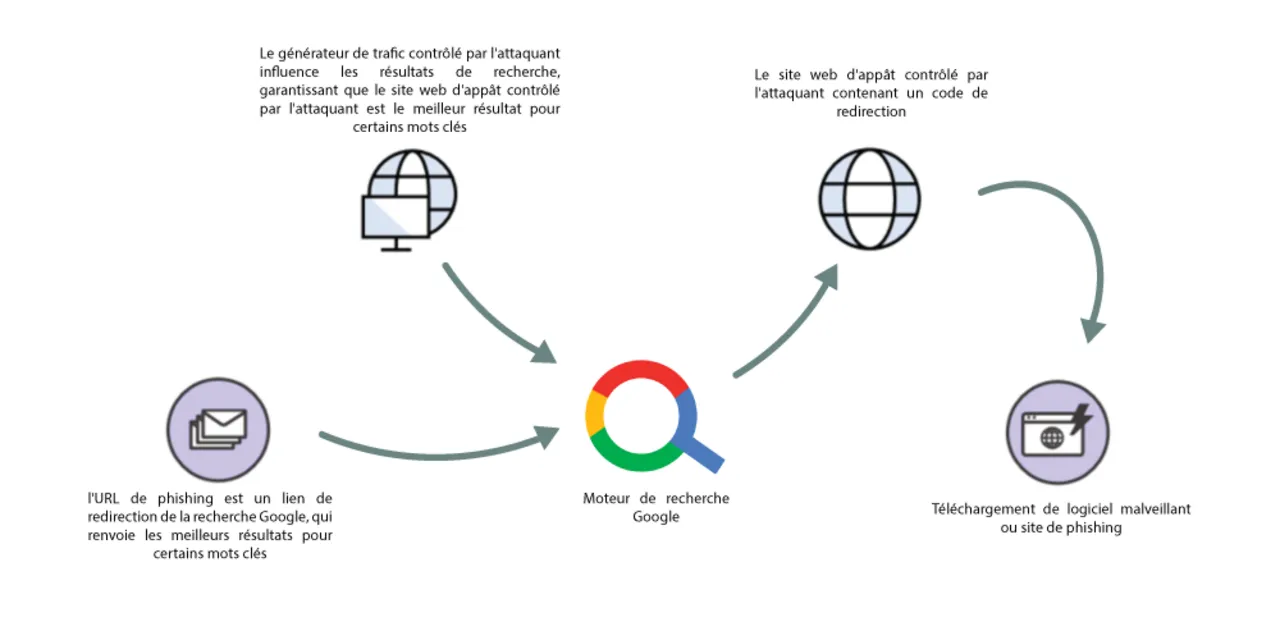
Conceptual phishing diagram from 2020, not evidence of a current attack against a school or Pakistani service.
Back up work before you need a recovery
A backup should give you a way to recover important files when the working copy is damaged, deleted or inaccessible. Think about assignments, original photographs of notes and project files that cannot easily be recreated. Keeping only one editable copy on one device leaves a clear point of failure.
File synchronisation and backup are related but not identical. Some changes or deletions can propagate through a synchronised service. Check what version history or restoration options your chosen arrangement actually provides rather than assuming every cloud folder preserves every previous state forever.
Test recovery with a harmless sample file. Save it, make a change and verify that you can retrieve the intended earlier version or backup copy. A successful test of a small example gives better evidence than a setting whose recovery behaviour has never been checked.
Shared computers need a clear sign-out habit
When you use a lab or another person's device, avoid leaving an authenticated session open. Sign out of the service, and do not save account passwords to a browser profile that other people use. Closing a tab is not necessarily the same as ending the signed-in session.
Private browsing can reduce some local browsing traces, but it should not be described as a complete shield against a compromised device, network monitoring or every form of account risk. Its name can sound broader than its actual role.
For important account changes, use a device you trust and keep supported. If a shared machine behaves unexpectedly, ask the responsible administrator rather than trying random repair tools from advertisements. A learning lab should have an agreed route for reporting a problem without students needing to improvise technical fixes.
Be careful with permissions and account connections
An application may request access to files, contacts or other account data. Read what it is asking for and consider whether that access fits its purpose. A tool that should only display a timetable does not automatically need broad access to everything in a cloud drive.
Review connected applications periodically using the account provider's real settings. Remove connections you no longer use after checking what they do. Changing a password and reviewing authorisations are different tasks; an account-protection review should not assume that one control covers every access route.
This is especially useful after an event such as trying an unfamiliar study extension or file converter. You can appreciate a convenient tool while still checking what you granted it. Convenience is a reason to examine the permission boundary carefully, not a reason to ignore it.
If you entered a password on a suspicious page
Stop interacting with the suspected page. From a trusted device or known legitimate service route, follow the provider's account-recovery and security guidance. Change the exposed password, check other accounts where it was reused and review active sessions and recovery details where the service permits.
If the account belongs to a school or employer, notify the responsible support contact promptly. If financial information was involved, contact the relevant provider through a verified route. These actions have different purposes, so sending a warning to classmates alone does not complete account recovery.
Preserve useful details such as the message, time and destination address without forwarding a dangerous link as an invitation to click. Do not post identity documents, verification codes or recovery secrets publicly while explaining the problem. A report should help the responder investigate without enlarging the exposure.
Distinguish an outage from an attack
A slow page or failed login does not by itself prove a cyber attack. Services can have software faults, connectivity problems and maintenance. Repeatedly guessing at the cause can spread an inaccurate incident story while the real problem remains unconfirmed.
Check the service's official status or support information and record what you observed: the affected service, approximate time and error behaviour. Describe the symptom separately from a theory about its cause. “The portal did not load” is evidence; naming a supposed attacker without evidence is speculation.
The same care applies to reports about national organisations. This general safety guide does not confirm a breach simply because “cyber attacks” appeared in a search-trend file. A current incident needs its own attributable evidence and an accurately stated scope.
A realistic weekly protection routine
Use a short repeatable routine: check that important updates completed, confirm that a sample backup can be restored and review unexpected security notifications through the provider's real app or website. Deal with an alert according to its evidence instead of clicking whichever message looks most frightening.
Keep the routine small enough to continue during busy study periods. A ten-item plan that nobody repeats is less useful than a few controls that remain in use. Write down non-secret completion notes if that helps you remember what has been checked.
For families, decide who helps when an account is lost or a device warning appears. A calm contact plan reduces the chance that someone will pay an unknown “repair expert” from a pop-up while feeling pressured. Support should be easy to reach before an incident occurs.
Questions students ask
Does HTTPS mean a website is honest?
No. An encrypted connection does not prove that a website's owner is the organisation they claim to be. Verify the destination and the request as well. A convincing login design and a secure connection can still belong to a deceptive site.
Should I send a password to a teacher for help?
Use the institution's approved support and reset process instead of sharing a password. A helper generally needs to understand the problem, not take possession of your secret. Remove sensitive details from screenshots before posting them in a group.
Will one security app prevent everything?
No single product replaces careful sign-in, verified communication, supported software and recoverable files. Tools can help, but the protection needs to cover several failure points. Avoid software that promises an impossible guarantee or demands that you disable existing protections before it can work.
Build habits that protect your study
The aim is to keep learning resources, accounts and original work available without turning daily study into a constant alarm. Unique credentials, sensible MFA, verified messages, updates and tested recovery form a practical starting point. Each addresses a different part of the problem.
Use our computer science resources and programming courses to build the underlying skills. For an actual incident, use the affected institution's verified support route and the appropriate local reporting channel. General advice supports that process but does not replace investigation of the specific case.
Sources
- NIST: Phishing guidance, for verification, organisational reporting and account-protection context.
- FBI: Simple online safety tips for adults, for code privacy, independent verification and software updates.
- FTC: Recognising and reporting spam text messages, for using a known genuine contact route rather than information in a suspicious message. Its US reporting destinations are not presented as Pakistan's local reporting service.
- IRS: Cybersecurity Awareness Month protection steps, for unique passwords, MFA, updates and protecting stored information.
- Indian Health Service: Updating software, for trusted update channels and unsupported-software considerations. The school-message examples and weekly routine above are original practical illustrations, not descriptions of a reported breach.
Image credits: cover: domjisch from Graz, Austria, source, CC BY 2.0. Resized and converted to WebP. inline: OussamaAksbi, source, CC BY-SA 4.0. Resized and converted to WebP.
Found an error or an outdated detail? Report a correction with the article URL and original source.