
Google Play Store Guide: App Safety, Updates and Sensible Troubleshooting
Understand Google Play Store, Play Protect, app permissions and reinstalling, with careful troubleshooting steps and practical digital-literacy exercises.
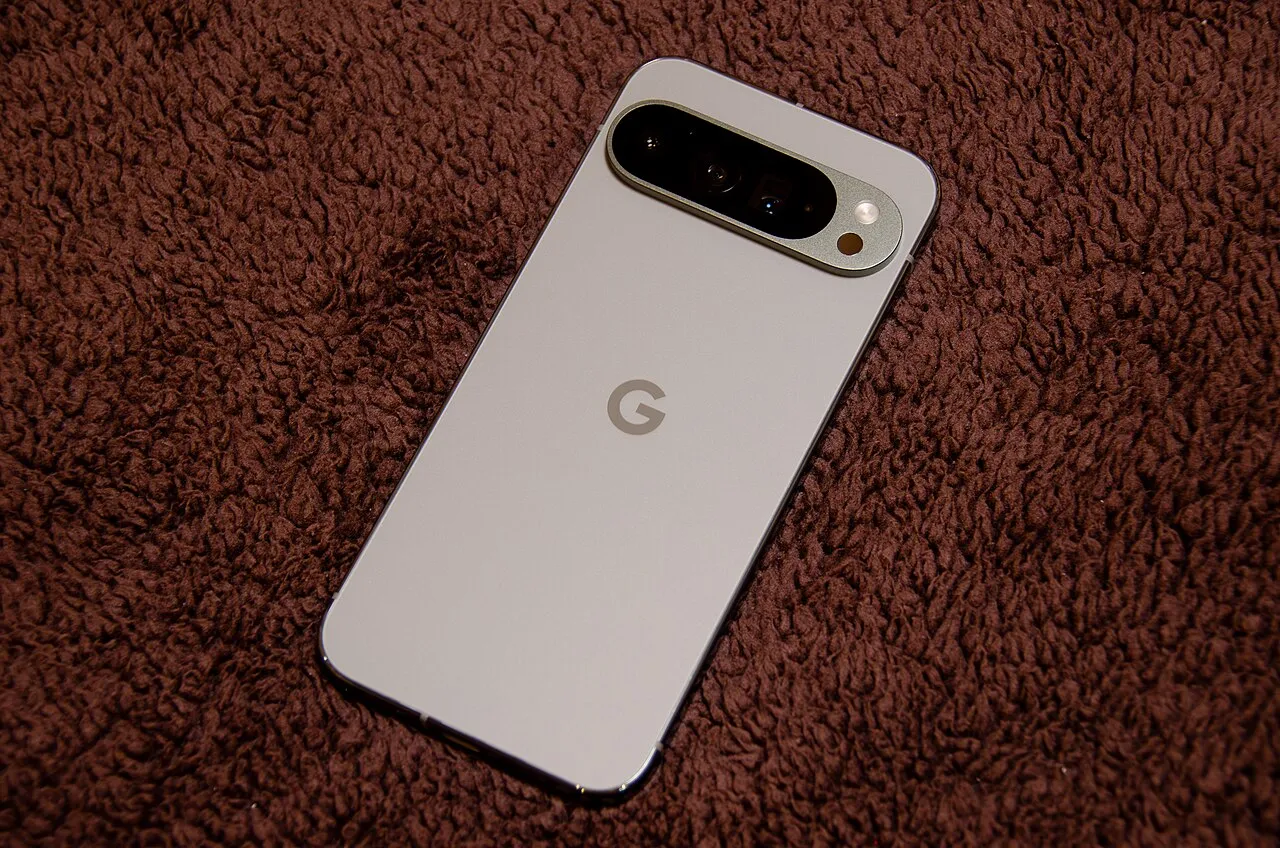
Google Play Store is an app-distribution and management service on supported Android devices. Google Play Protect is a related security feature that checks for potentially harmful behaviour. The names are connected, but they do not describe the same job. Understanding that difference helps users make sense of downloads, updates, app permissions and security warnings.
This guide explains everyday app-management concepts and a cautious troubleshooting order for students and families. It does not promise that any store, scanner or device is completely risk-free. It also does not direct readers to disable protections or install a replacement store from an unknown download page to solve an ordinary app problem.
The store, an app and the operating system
An Android device contains an operating system and individual applications. The store is one application and service through which software can be found and managed. A problem in one downloaded app does not automatically mean the operating system or the store itself has failed.
Start by identifying which component is showing the problem. Is the store not opening, is a download waiting, is a particular app crashing after installation, or is the device reporting a security warning? Those situations can look similar when described only as “Google Play is not working,” but they need different investigations.
For a classroom diagram, draw separate boxes for operating system, store and installed app. Add arrows showing distribution and execution. The diagram is simplified, but it makes one useful distinction visible: obtaining software and running software are different stages. Correctly locating a problem is the first step toward explaining it.
What Play Protect does
Google's official guidance describes Play Protect checking apps for harmful behaviour, warning about potentially harmful software and, in some circumstances, disabling or removing it. The guidance recommends keeping the protection enabled. The presence of a scanner does not eliminate the need to evaluate an app's identity, purpose and requested access.
Google also distinguishes device certification from an individual app's behaviour. Its documented certification check is available through the Play Store's settings and About information. A certification label and a clean-looking app page answer different questions, so neither should be expanded into a universal guarantee about everything a device might do.
If a warning appears, read its exact wording and use the relevant official support guidance. Do not treat every interruption as an obstacle to bypass. The warning may contain the information needed to understand why an installation was blocked or why an app needs attention.
Read an app listing before installing
Check the app's name, developer identity, stated purpose and available privacy information. A familiar-looking icon alone is not a strong identity check. Several products can use similar wording, and a copied visual style can make a different product look more familiar than it is.
Ask what task you actually want the app to perform. A school note-taking app, a calculator and a messaging app have different purposes. A clear purpose makes it easier to assess whether the requested access is understandable. The question is not whether an app requests no permissions at all, but whether the request makes sense for the work.
For an original exercise, compare two fictional listings for a timetable app. One explains that it stores class reminders locally; another makes vague promises and asks for unrelated access without explanation. Students should describe the differences in information quality rather than invent a technical verdict about real products they have not tested.
Permissions should be considered in context
A permission controls access to a category of device capability or information. A request can be necessary for a feature, optional for another feature or unrelated to the task the user intends. Accepting every prompt automatically prevents the user from making that distinction.
Imagine a fictional photography app requesting camera access when the user opens its capture feature. That request has an understandable relationship to the action. Contrast it with a fictional basic arithmetic tool requesting access that it does not explain. The comparison is about reasoning from purpose, not a blanket rule that a permission always proves malicious behaviour.
Use the device's normal settings and official instructions to review access when needed. If removing a permission affects a feature, reconsider whether you want that feature and whether the explanation is adequate. Do not grant access merely because an unrelated website says it will unlock a free premium account.
Updates are different from reinstalling
An update replaces or revises an installed version. Reinstallation removes and installs an app again through the appropriate service. The two actions can affect local state differently, so they should not be presented as interchangeable first responses to every problem.
Before uninstalling an app containing useful work, understand how that work is saved. Some information may be stored locally, while other information may be associated with an account or a separate service. A general troubleshooting article cannot know the storage arrangement of every app on a reader's device.
For a student project, create a fictional app record with separate fields for version, local files and account-based data. Then describe what you would need to know before reinstalling. The exercise teaches a useful habit: check the location and recovery method of important data before performing an action that might affect it.
Reinstalling a previously obtained app
Google's official reinstall guidance explains that previously purchased apps can be used on compatible Android devices signed into the same Google Account without purchasing the app again. Its documented management area lets users find apps that are not currently installed and select installation or enabling where available.
That account relationship explains one common source of confusion. A user who changes accounts may be looking at a different history. The correct first question is which account obtained the app, rather than immediately assuming that the store has erased the purchase or that another payment is necessary.
Do not interpret this as a guarantee that every old app remains compatible with every new device or that every in-app entitlement transfers identically. App compatibility, availability and individual service terms can add conditions. Verify the specific listing and support information instead of turning a general account principle into a promise about every product.
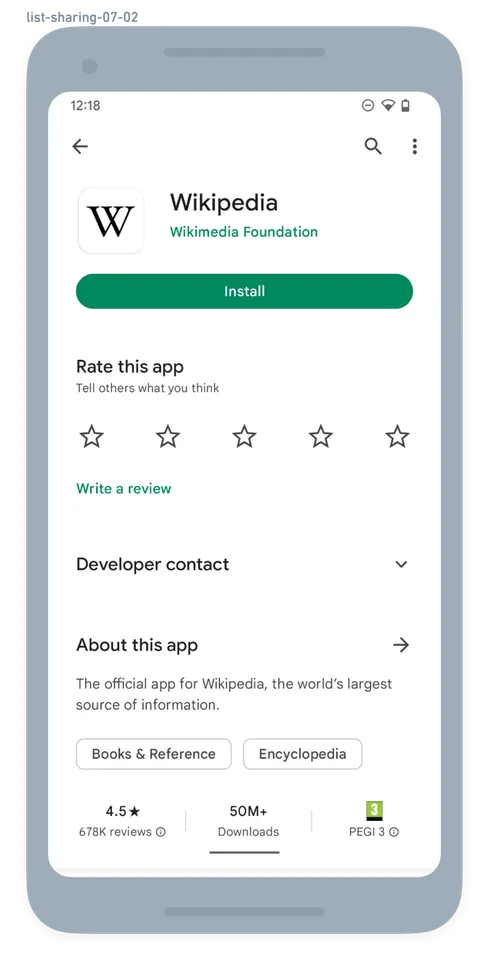
An archive example of an app listing on Google Play. The illustrated app is Wikipedia; this is not a guarantee of the current interface layout.
A sensible order for investigating a download problem
First describe the symptom and note any exact error message. Check whether the issue affects one app or several. Confirm the device has an appropriate connection and available storage for the task. A problem affecting one listing can have a different cause from a store-wide failure on the device.
Next consult the official support page matching that symptom. Work through one suitable step at a time and check the result before moving on. If you change several settings simultaneously, a successful outcome does not reveal which change mattered, and a new problem becomes harder to trace.
Keep the investigation proportionate. An ordinary download issue should not immediately lead to resetting an entire device or installing a supposed repair package from a third-party message. A drastic action has consequences beyond the original symptom and needs a clearer justification than a generic promise to make the store work again.
Cache and stored data are not the same idea
A cache holds information used to make repeated work more convenient or efficient. Stored app data can include settings and other state. The exact categories depend on the device and app, but the conceptual difference matters when a guide suggests clearing something.
Google's reinstall troubleshooting material explains that clearing Play Store storage or data can remove settings such as parental controls or password protection and may require accepting the terms again. It also tells readers to re-enable relevant protections afterwards. Those consequences should not disappear from a summary that presents the action as a harmless universal button.
Before following a storage-clearing instruction, read the confirmation and the official context. Identify which app's storage is being affected. Clearing a store's cache is not a general instruction to erase the personal work inside every installed application. Precise naming protects against actions broader than the problem being investigated.
Do not turn a warning into a search for a bypass
A page offering a special “unblocked” installer can exploit a user's frustration. The familiar app name does not make the source trustworthy, and a copied screenshot does not establish that the file is the correct product. Keep troubleshooting within verified support and distribution routes.
This is especially important when the page asks the user to disable scanning, enter recovery information or install a remote-control tool unrelated to the original task. Those requests need scrutiny. A routine store issue does not justify handing an unknown party control of the device or access to an account.
For a classroom discussion, list the information a legitimate support conversation actually needs: device type, a non-sensitive error description and the steps already tried. Compare that with a request for a password or recovery code. The exercise teaches boundaries without requiring students to experiment with suspicious files.
Shared devices need clear account boundaries
A phone used by several family members can contain more than one account, different app histories and settings that affect purchases or access. Before changing something, identify whose account and work are involved. A shared physical device does not make every account's data interchangeable.
Use the platform's appropriate family and device controls rather than assuming that a single informal rule will cover every situation. If a troubleshooting step changes a protection, restore the intended configuration after the relevant official process. Keep a note of changes so that a later user is not surprised by a different setting.
The same principle applies in a school lab. Students should not use another person's signed-in store account as though it were a public resource. Software access, personal information and purchasing authority are different responsibilities. Learning to respect those boundaries is part of learning to use digital services competently.
Write a useful support report
Include the device model, relevant system version, app name, a concise symptom, the time observed and the steps tried. State whether the issue affects one item or many. Do not publish passwords, recovery codes, payment details or screenshots containing private account information.
A good report also distinguishes observation from explanation. “The download remains pending” is an observation. “The provider deleted my account” is a conclusion needing evidence. Starting with the observation gives support a more reliable basis for diagnosis and avoids spreading an unsupported claim as though it were established fact.
Keep a simple change log when troubleshooting: action, reason and result. If a step does not help, say so without pretending it proved the opposite cause. Systematic notes may feel slower than random tapping, but they reduce repeated work and make it easier to stop before an unnecessary disruptive action.
A practical digital-literacy lesson
Create three fictional scenarios: an unavailable app, a device with little free storage and an app-specific crash after installation. Ask students to identify what is known, what remains unknown and which official information would help. Do not supply one universal fix for all three.
Then give each student a mock app listing and ask for a short assessment of identity, purpose and access requests. The goal is to explain a decision using available evidence, not to label every unfamiliar product dangerous or every familiar logo safe. Context and verification work together.
Further material is available through the RayTech educational guides. Understanding app distribution is useful beyond Android because the same questions recur elsewhere: who supplied the software, what it needs to do, where the data lives and how to obtain support without exposing private information.
Common questions
Is Play Store the same as Play Protect?
No. The store concerns obtaining and managing apps, while Play Protect provides checks and warnings about potentially harmful behaviour. Their roles are connected, but a distribution interface and a security feature should not be treated as identical concepts.
Should I disable protection to make a download work?
This guide does not recommend bypassing a warning as an ordinary troubleshooting step. Google recommends keeping Play Protect enabled. Read the exact message and the relevant official support information rather than following an unknown site's generic instruction to turn protections off.
Will reinstalling preserve all my work?
No universal guarantee can be made. Determine how the specific app stores and restores its information before removing it. Local data, account-based records and separate backup arrangements can differ. The guide was checked on 12 November 2026; use the current official instructions for your device and symptom.
Sources
- Google Play Protect official checks and security guidance
- Google Play official reinstall, re-enable and troubleshooting guidance
Image credits: cover: D.328, source, CC BY-SA 4.0. Resized and converted to WebP. inline: RWambua-WMF, source, CC BY-SA 4.0. Resized and converted to WebP.
Found an error or an outdated detail? Report a correction with the article URL and original source.