
iOS 27.2: Official Release, Backup Preparation and Safe Update Checks
Verify iOS 27.2 through Apple’s release records, prepare a backup and check device updates, storage, installation stages and support information.

iOS 27.2 is a released Apple software update, not merely a rumoured download. Apple's developer release entry is dated 26 October 2026, and its security bulletin names iOS 27.2 and iPadOS 27.2. The useful question for an iPhone owner is whether the update is offered for their particular device and how to prepare for it safely.
This guide explains the official checking route, the difference between downloading and installing, and how to organise a sensible update session. It does not promise that every feature will appear on every phone or repeat a download size taken from somebody else's device. Settings on your own phone is the practical starting point.
What is confirmed about iOS 27.2?
Apple's release record identifies iOS 27.2 and a 26 October release date. The matching security page also covers iPadOS 27.2. Those records establish a published release; they do not establish that every old iPhone supports it or that an unverified link shared in a message is a legitimate installer.
| Check | What to use |
|---|---|
| Release identity | Apple's iOS 27.2 release entry |
| Security information | Matching Apple security bulletin |
| Installed version | The device's software information |
| Available update | Settings, General, Software Update |
| Device-specific instructions | Apple's official support route |
The version number and the build identifier serve different purposes. The familiar version is a public label; the build identifies a particular software build. Preserve both when asking support about a problem. A screenshot showing only a notification badge is less useful than the actual version information and the exact stage where an update stopped.
Start with the phone, not a social download link
Apple's support instructions direct users to Settings, General and Software Update. That screen can show the installed version and an available update. It is a better source for your own device than a video claiming that everyone must install a file from the video's description. A legitimate update does not become more trustworthy because a link uses Apple's logo.
Read the entire screen before choosing an action. An update within an existing version family and an offered major upgrade may be presented differently. The presence of one option does not justify assuming that every option shown in somebody else's tutorial will also appear on your device. Match the instructions to the screen you actually have.
Do not enter an Apple account password into an unfamiliar page promising to unlock an early update. If account verification is needed, return to the device's own settings or the official service. An unsolicited message can imitate the appearance of a normal support notice while sending the user somewhere unrelated.
Make a backup before changing the operating system
Apple places backup preparation before its update steps. The reason is practical: your phone contains information that matters independently of the operating system. An update is a good moment to check that the important information has a recoverable copy, rather than discovering after a separate hardware problem that no recent copy exists.
A useful personal inventory includes photos, contacts, important messages, documents and access to accounts you regularly use. Do not assume every app stores everything in the same way. Some information may be synchronised through an account, while other information may require the app's own export or backup process. Check the app's instructions for its particular data.
Record when the backup completed and where it is stored. The existence of a backup button is not proof that a current backup finished successfully. A clear completed status is more useful. For a family device, make sure the owner understands the account used for recovery without placing private passwords in a public note or group chat.
Downloading and installing are different stages
Downloading transfers the update package to the device. Installing applies the software change. A progress indicator at one stage does not describe the other, and the phone may restart as part of the process. When seeking help, say which stage is visible instead of using the single word stuck for every delay.
Write down the exact message if there is one. Unable to check for an update, insufficient storage and a stalled download describe different problems. A support conversation becomes much faster when it begins with the device model, installed version, available version, current stage and precise message. Those details are more useful than a guess about the cause.
Do not force a restart simply because a progress bar moves slowly. Follow the official instructions for the particular situation. An installation can take time, and a tutorial for an unrelated error should not be treated as a universal recovery procedure. Keep access to Apple's support guidance available on another device if needed.
Power, connection and available storage
Apple's normal wireless-update instructions include a power connection and Wi-Fi. That is a preparation checklist rather than a claim that a particular home network guarantees success. A reliable connection and a suitable time reduce avoidable interruptions, especially when the phone is also needed for work, study or authentication.
Storage deserves its own check. A download size shown online is not a promise of the space your installation will need. Temporary working space and device-specific packages can make the experience differ. Use the device's own information and official support instructions rather than deleting important files to reach an arbitrary number quoted by an influencer.
If space is limited, first identify what can safely be removed or moved. A duplicate download and an irreplaceable photo are not equivalent. Make recoverable copies where appropriate, confirm that they open, and avoid bulk deletion based on an unfamiliar cleaner app's recommendation. Good preparation protects data while addressing the actual space requirement.
Choose a time that fits how you use the phone
An update session is easier when it is not competing with an immediate need for the device. Avoid beginning just before an exam login, travel departure or important call if you cannot tolerate a period of unavailability. This is ordinary planning, not a prediction that the update will fail.
If the phone provides a one-time sign-in code for another service, understand your recovery options before starting. A backup code stored only inside the phone may not help while that phone is unavailable. Use the account provider's supported recovery methods and keep any recovery material private. Do not send it to someone offering update assistance.
For a shared household device, tell the owner what you are about to do. Confirm the passcode and account recovery arrangements through the proper private process. Updating someone else's phone without understanding their data or sign-in needs can create confusion even when the software installation itself works normally.
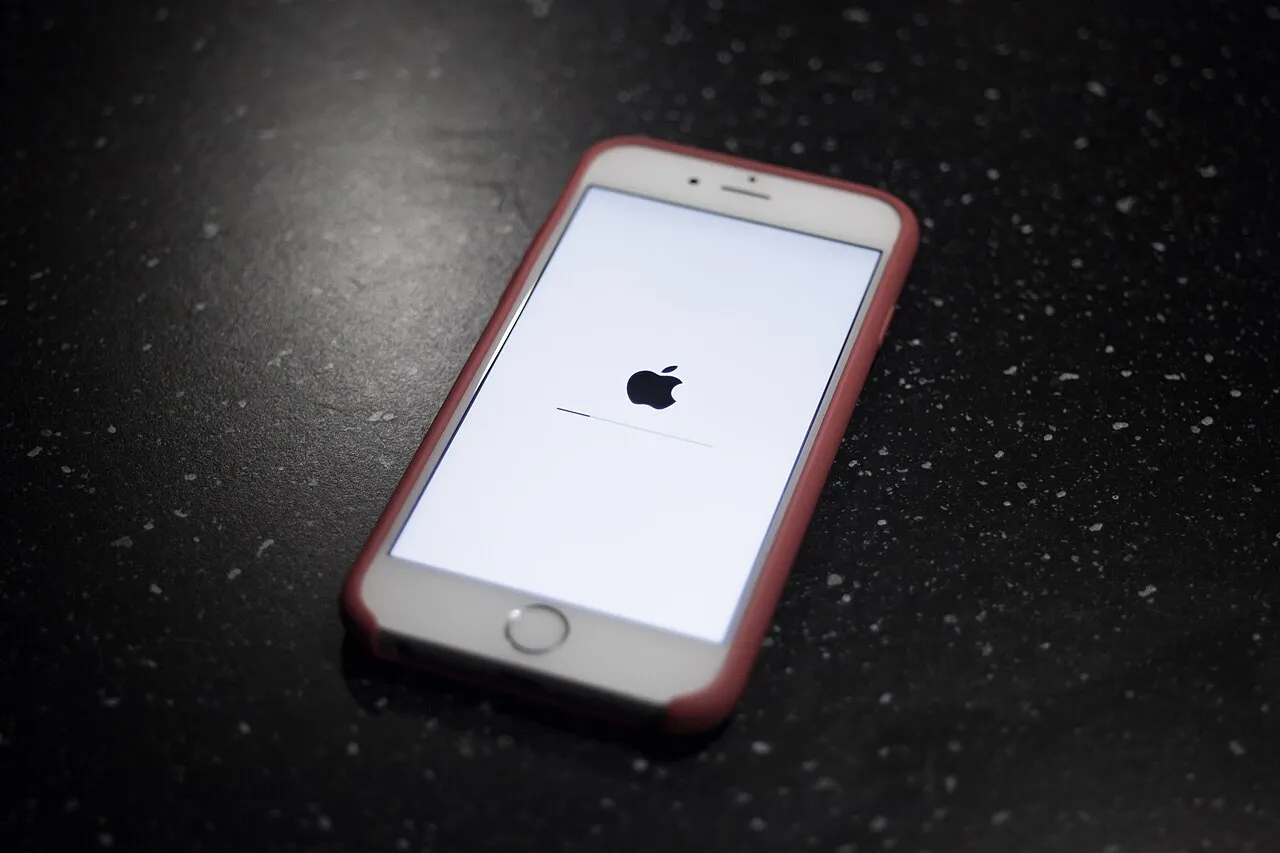
An older iPhone software-update screen, used to illustrate the update process rather than the appearance or requirements of iOS 27.2.
Why security notes and feature notes are different
A security bulletin describes addressed security issues and their scope. A feature summary explains visible capabilities and interface changes. One is not a substitute for the other. A release can contain important work that is not obvious as a new button, and a visually prominent feature does not explain every security change.
Apple's security bulletin is the appropriate reference for its published security content. Avoid turning a brief impact description into a claim that a particular reader has been compromised. A vulnerability description identifies a class of issue; proving an incident on a specific phone requires separate evidence.
The reverse mistake is assuming that an ordinary-looking phone cannot need an update. Security relevance is not measured only by visible symptoms. Read the official guidance and device eligibility instead of deciding from whether the interface still looks normal. An educational explanation should make these categories clear without creating panic or making personal incident claims.
Public releases, betas and release candidates
A beta is a testing-stage release. A release candidate is another release-stage label that should be read in its actual context. A public release entry and a developer testing announcement are different records. An old beta article should not override the later dated entry simply because it appears high in a search result.
If you do not deliberately participate in testing, do not join a beta programme merely because a social post says it is the fastest way to obtain a feature. Read the programme's terms and the effect on the device you rely on. Choosing a testing build is a separate decision from following the ordinary update path.
When comparing instructions, preserve the date and release type. A screenshot from an early beta can accurately describe that beta while being a poor guide to the current public screen. This is a recurring source of confusion in software tutorials: an authentic image can still be the wrong image for today's task.
Feature availability is not the same as version availability
Installing a version does not by itself prove that every advertised capability is available in every language, region or hardware configuration. A feature's requirements can be narrower than the operating system's general compatibility. Check the specific feature information rather than using the presence of the version number as the whole answer.
This is particularly useful when discussing AI features. A headline may describe a capability without listing its device or language requirements. That omission does not justify assuming support on an older phone. Nor should an article promise a capability in Urdu or another language unless the relevant official information establishes it.
For students studying software, think of compatibility as several conditions rather than one switch. The device can satisfy the operating-system condition while another requirement remains unmet. A small checklist with device, version, region, language and feature settings can organise the investigation more clearly than reinstalling software repeatedly.
A simple post-update check
After the device returns to ordinary use, confirm the installed version and check the functions you rely on. Open a few important apps, test the normal connection and make sure expected information remains accessible. This is a focused check, not a reason to change every setting or install another utility.
If an app behaves unexpectedly, record the app version and the specific behaviour. Check whether the app has an update through its legitimate distribution route. An operating-system update and an app update are separate releases; one does not automatically describe the other's compatibility status. Use the app provider's support information where appropriate.
Avoid diagnosing battery health from one short observation immediately after an update. A credible comparison needs a defined period and similar usage conditions. Screen brightness, connection quality and the tasks performed can affect a casual impression. The useful first step is to describe what changed, not to declare a universal defect from one afternoon.
If the update is not showing
First confirm the device model and installed version, then revisit Software Update through the normal settings route. Read Apple's official instructions for updates that do not appear or cannot complete. The absence of an option on one device is not proof that the release is fictional, and it is not a reason to install an unofficial package.
Managed devices may also have an organisation's procedures. If a school or workplace owns the phone, consult its authorised administrator rather than trying to bypass management. An update policy can be part of the device's support arrangement. The correct route depends on ownership and management, not just the version a public article discusses.
A concise support note should contain facts you can observe: device, current version, time checked and message. Leave private account identifiers, passwords and recovery codes out of a public post. Good troubleshooting combines enough technical detail to identify the problem with restraint about information that other readers do not need.
Questions about the iOS 27.2 update
Is a download size quoted online reliable for my phone?
Not as a device-specific guarantee. Read the size and storage information shown for your own device. A different model or starting version can change what is offered. Keep personal data backed up and follow official storage guidance rather than deleting files to match an unrelated tutorial's figure.
Do I need a separate website to install it?
Begin with Apple's normal Software Update route. If a computer-based method is needed, use the official instructions linked from Apple's support page. A message promising an unlocked installer is not equivalent to that route, even if it copies Apple's branding or uses a convincing countdown.
What is the best information to keep for support?
Keep the model, installed version, offered version, exact message and stage of the process. Those details make the problem understandable without exposing credentials. Explore programming courses to learn more about software versions and class resources for digital-literacy practice.
Sources
- Source: Apple developer iOS 27.2 release entry
- Source: Apple iOS 27.2 and iPadOS 27.2 security bulletin
- Source: Apple official update instructions
Image credits: cover: I, Alison, source, CC BY 2.5. Resized and converted to WebP. inline: Håkan Dahlström from Malmö, Sweden, source, CC BY 2.0. Resized and converted to WebP.
Found an error or an outdated detail? Report a correction with the article URL and original source.