
iOS Explained: Updates, Backups, Storage and Privacy for Students
Understand iOS updates, iPhone backups, storage and app permissions, with practical checks for protecting student work and troubleshooting problems.
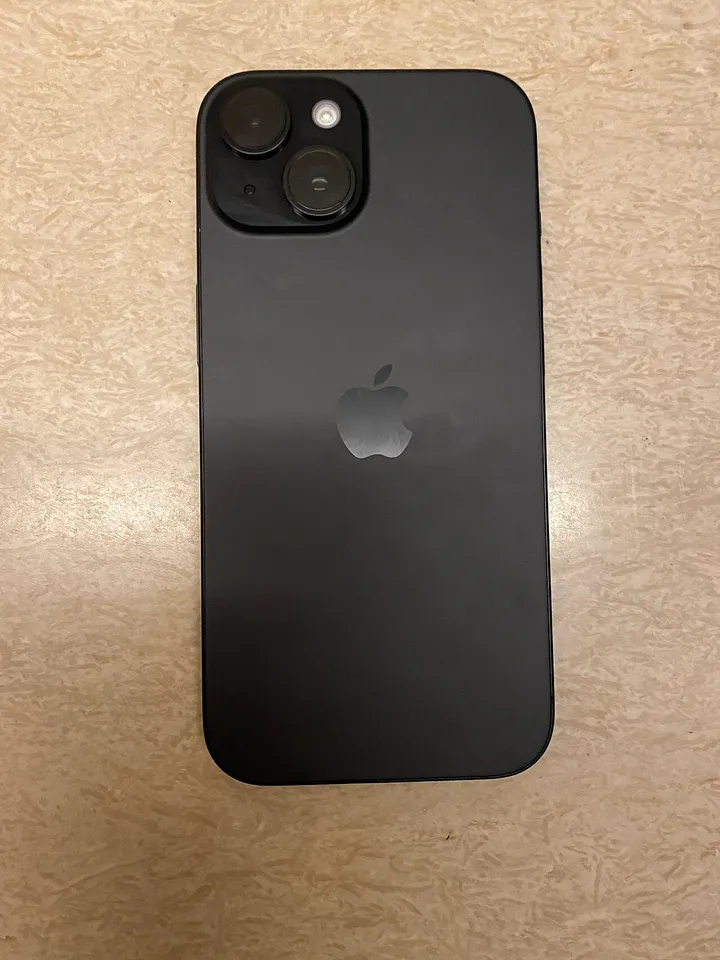
iOS is the operating system on Apple's iPhone. It manages applications, files, networking, permissions and the controls people use every day. Understanding those jobs makes an iPhone easier to maintain than treating each new version as a collection of unfamiliar buttons. A useful starting point is knowing how to check software, protect important data and recognise which settings affect a particular problem.
This guide was checked on 5 November 2026 against Apple's support material. It does not promise that every iPhone can install every release or identify a particular patch as permanently the latest. Your device's supported update, account arrangements and available settings determine the steps that apply to you.
How do I identify the iOS version on my iPhone?
Open Settings and inspect the device information under General. Record the iPhone model and installed software version together. A version number by itself is incomplete evidence when asking for help because two devices can differ in hardware support, available storage and the software offered to them.
Keep this record simple: model, current version, date checked and the issue you want to solve. You do not need to publish a serial number, account address or other identifying information. If you share a screenshot, crop or redact private fields while retaining the information needed to understand the software question.
Read instructions for the device family you actually own. iPhone and iPad are related products, but an iPad normally uses iPadOS and may present a different arrangement of controls. A tutorial showing a similar screen does not establish that every step belongs to your particular device and software version.
What should I do before installing an update?
Identify the important information you would struggle to replace: study documents, photographs, contact details, messages and application-specific work. Check how each is protected. A vague belief that everything is somewhere in the cloud is less useful than knowing which service holds it and whether you can access that account.
Next, review the official update instructions, available storage, network connection and power arrangements. Choose a time when the phone is not needed for an imminent class, journey or verification code. Preparation is about reducing avoidable disruption, not creating a promise that an update can never encounter a problem.
If the phone belongs to a school or employer, establish whether it is managed before changing update settings. An organisation may control certain options. Do not remove management software or attempt to bypass its restrictions simply because a consumer tutorial shows a control that your device does not offer.
How are iCloud backups and computer backups different?
Apple documents both iCloud and computer-based backup methods. Their contents and requirements differ, so read the comparison for the method you use. A backup can help preserve device information, but it is not a reason to assume that every service password, synchronised item or application's independent cloud data is included in the same way.
Imagine a student who keeps a project in one learning application and photographs in a separate photo service. The sensible question is not only whether an iPhone backup exists. It is also whether the project and photographs can be accessed through the accounts and services that actually hold them.
Write a small recovery map. For each important category, record its usual location, the account needed and the recovery method. Keep passwords in an appropriate private password-management system, not in the map you share with classmates. The map describes the recovery route without becoming an exposed collection of credentials.
Is cloud synchronisation the same as a backup?
Synchronisation and backup solve related but different problems. Synchronisation keeps information consistent between connected services or devices. A backup is a recovery copy made under the rules of its particular system. You should understand what a deletion or account change does before assuming a synchronised copy is an independent archive.
Use an unimportant practice file to understand a service's behaviour before relying on it for a major assignment. Observe where the file appears and read the service's deletion and recovery information. Do not experiment with your only copy of an examination document or a finished project.
For important study work, maintain a clear master file and a deliberate recovery arrangement. Give files meaningful names and check that a saved copy opens. A folder full of similarly named documents is not necessarily a dependable record, especially when nobody knows which version contains the final changes.
How can I check that a backup actually completed?
Apple's iCloud backup instructions show where to inspect backup information and start a backup. Follow the current steps and read the displayed status. Distinguish a completed backup from one that is still running or could not finish. The existence of a backup setting does not prove that the latest attempt succeeded.
Record the completion time and any unresolved warning. If a process reports insufficient storage or a connection problem, address that condition before treating the phone as ready for a major change. Avoid repeatedly starting unrelated operations while trying to determine whether the original backup completed.
Verification should be proportionate. Check the status and confirm that important independently stored work is accessible through its proper service. Do not reset a working phone merely to prove a point. Recovery procedures have their own requirements and should be followed deliberately when they are actually needed.
How do iOS updates reach the device?
Apple's update route is Settings, General, then Software Update. The screen identifies the software offered to the device and its available installation controls. Read what it displays rather than downloading a file from an advertisement claiming that all iPhones need the same package immediately.
Automatic-update settings can help manage supported updates, but enabling an option is not the same as confirming a particular installation has finished. When investigating an issue, check the installed version again. A notification, a downloaded package and an installed release represent different stages of the process.
If the expected update is unavailable, identify the device model and supported release first. Then use Apple's troubleshooting guidance for the actual condition. Repeatedly changing unrelated settings makes the situation harder to describe and can introduce new problems without resolving the original reason an update is not offered.
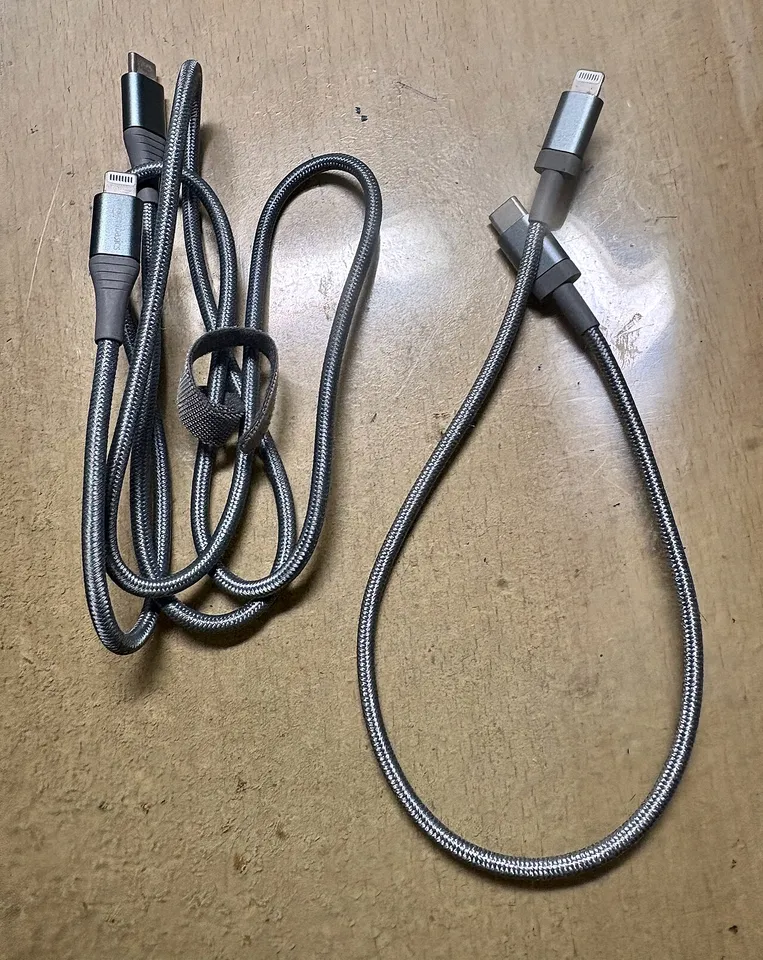
A Lightning-to-USB-C cable, shown as accessory context; the correct connection depends on the device and supported backup method.
What does available storage tell me?
Storage is the device space used by applications and data. It is different from a mobile-data allowance and different from cloud-account storage. When a message mentions insufficient space, identify which kind of storage it means before buying a service or deleting material from the wrong place.
Suppose a phone contains several large downloaded lectures. Removing a replaceable offline download can have a different consequence from deleting an original recording that exists nowhere else. Before clearing space, classify the item as replaceable, independently saved or currently your only copy.
Keep a short cleanup list and work through it carefully. Verify the location of important files, remove items you understand and inspect the result. Avoid tools promising a dramatic one-tap cleanup if they do not explain what they change. A large number on a promotional screen is not evidence of a useful or necessary operation.
How should I approach app permissions?
Permissions determine which protected capabilities or information an application can use. Review the permission in relation to the task. A video lesson may need audio output, while recording a spoken exercise may require microphone access. Those are different operations even when they occur inside the same application.
If a function fails, reproduce the specific task and inspect the relevant permission rather than allowing every requested capability. After making one change, test again. This creates a clear relationship between the setting and the result, which is useful both for troubleshooting and for learning how the system works.
Revisit permissions when an application's purpose changes or when you stop using it. Read Apple's privacy guidance for the controls available on your version. Permission settings are one part of privacy; they do not establish that an application, a website or a person receiving information is automatically trustworthy.
What should a student check when a website behaves differently?
First determine whether the problem concerns the website, the browser, the network or a particular account. Record the page, the action attempted and the visible result. A useful report says that a lesson opens but its upload control fails, rather than saying that the entire phone does not work.
Try a simple comparison without exposing personal data: can the same public page open on another suitable connection or device? A comparison can narrow the problem, but it does not prove its cause. Keep the test conditions clear so that an account difference or cached page is not mistaken for a hardware fault.
For the programming courses, distinguish reading a lesson from running a browser-based example. An editor, a preview and a saved-progress account perform different tasks. Report which part is affected, and avoid posting passwords, verification codes or private screenshots when requesting help.
How can I organise reliable troubleshooting notes?
Use four entries: what I expected, what happened, what I changed and what happened afterwards. Change one relevant condition at a time. If you simultaneously reinstall an application, change the network and clear account data, a later improvement will not tell you which action mattered.
Include ordinary context such as a weak connection, an interrupted download or a recently changed setting. These details are often more useful than a dramatic description. Keep the original error wording privately when needed, but remove personal information before sharing a report in a public classroom group.
Stop when the evidence calls for official support. Repeating increasingly destructive actions is not a demonstration of persistence. A careful record makes it easier for a support person to understand the issue and reduces the chance that you lose the very information needed to investigate it.
What should I check before handing a phone to someone else?
Think separately about lending a device for a short task and transferring ownership. A classmate viewing a public lesson does not need access to your photo library, saved accounts or private messages. Agree on the task and keep personal information outside the shared activity wherever possible.
For an ownership transfer, follow Apple's current preparation instructions rather than improvising an account-removal sequence. Preserve important data, understand the account and device-lock implications, and complete the documented steps deliberately. A screen that appears empty does not by itself prove that an account relationship has been removed correctly.
For classroom demonstrations, prepare a public example with invented information. Avoid projecting a real account-settings screen containing email addresses or personal identifiers. This habit is useful beyond iPhone maintenance: it teaches that a clear explanation can be demonstrated without exposing somebody's actual private records to the entire room.
Frequently asked questions
Does a higher iOS number make every older iPhone compatible?
No. Compatibility depends on the release and the device. Use Apple's current supported-device information and the software offered through the official update route. Do not rely on a copied compatibility list without checking its date, or install unofficial packages simply because their filenames contain a newer version number.
Does an update replace the need for good account security?
No. Software maintenance and account security address different problems. An updated device can still be used to disclose a verification code to the wrong person. Follow the account provider's security and recovery guidance, and do not treat a software badge as permission to ignore suspicious requests.
Should I delete everything before asking for help?
Start with a clear description and proportionate checks. Deleting data can remove useful evidence and create avoidable recovery work. Back up important information and follow official instructions before any operation that erases or restores the device. A dramatic action is not automatically a more effective diagnostic step.
How can I turn this into a useful learning exercise?
Make a private maintenance checklist for one device: software version, important-data locations, backup status and the permission needed for one learning task. Explain why each entry matters. The goal is to understand the system's responsibilities, not to memorise a sequence of taps that may change between releases.
Sources
- Apple: update your iPhone or iPad
- Apple: back up an iPhone or iPad with iCloud
- Apple: iPhone backup methods and guidance
- Apple: privacy
Image credits: cover: ThePhotoGraphIc, source, CC BY-SA 4.0. Resized and converted to WebP. inline: Kyu3a, source, CC BY-SA 4.0. Resized and converted to WebP.
Found an error or an outdated detail? Report a correction with the article URL and original source.