
Outlook Not Working? Official Status and Safe Sign-In Troubleshooting
Check official Outlook service status and troubleshoot sign-in, browser, sending and storage problems without exposing passwords or losing important work.

If Outlook is not working, first separate a service problem from an account, browser, application or storage problem. Microsoft's official service-health page and Outlook support pages are the appropriate places to check known issues. A search spike or a collection of user complaints does not, by itself, confirm that every Outlook service is unavailable.
This guide was checked on 13 November 2026. It explains where to find current status information and how to investigate common symptoms without exposing passwords or deleting useful work. It is not a live outage monitor and does not claim that an unverified worldwide incident is currently active or resolved.
First identify which Outlook you use
Outlook can refer to a personal Outlook.com mailbox, an application on a computer or phone, or an organisation's email environment. These can involve different accounts and support arrangements. A problem in a desktop application does not automatically establish that the personal webmail service has failed.
Write down three things before changing settings: the account type, the device or application, and the exact symptom. For example, “personal mailbox opens in the browser but does not update in the phone app” is more useful than “email broken.” The first description already identifies a working route and a narrower area to investigate.
For a school or work account, follow the organisation's support process where appropriate. The person administering its email service may have information or controls that an ordinary account user cannot access. Do not assume that personal-account recovery instructions apply unchanged to an institution-managed identity.
Where to check official service status
Microsoft provides a public service-health page and directs Outlook.com users to it from the official known-issues guidance. Use the current page for the relevant service and read the issue scope and update time. The page is interactive, so a browser may need JavaScript enabled to display its information.
A public status page and an organisation's administrative service-health view can have different scopes. A general public message should not be stretched into a claim about every tenant or every device. If a school or employer reports an organisation-specific issue, keep that information distinct from a broad consumer-service notice.
Retain the timestamp when sharing a status update. “Investigating” and “resolved” describe different stages, and a screenshot can remain online after the stage changes. An accurate earlier notice becomes misleading if someone presents it as the latest position without checking when it was issued.
Search reports are clues, not a diagnosis
A rise in searches for “Outlook down” tells you that people are asking a question. It does not establish the technical cause or the number of accounts affected. Reports may concern different devices, regions or problems that happen to share a familiar product name.
Use those reports as a reason to check the official sources, not as a substitute for them. A complaint about a phone app and a complaint about a forgotten password can appear beside one another even when they need different responses. Combining them into an invented global outage would make the explanation less useful.
For a simple evidence note, keep separate headings for observed symptoms, official announcements and unverified reports. The structure prevents a comment copied from social media from quietly becoming a confirmed technical finding in your own summary.
If the sign-in page will not open
Check whether the problem affects only the sign-in page or whether ordinary websites also fail to load. That comparison helps distinguish a wider connection symptom from a problem involving one service. It does not identify the cause on its own, but it gives the next investigation a clearer starting point.
Use a current supported browser and the official address. Microsoft's supported-browser guidance explains that older browsers and some browser configurations can cause loading problems. A successful test in one supported browser is useful evidence, but it does not prove that an account issue can never occur elsewhere.
Avoid making many changes at once. Record the original symptom, try one relevant comparison and check its result. If you change the browser, network, application and account simultaneously, an improvement becomes harder to explain and a new problem becomes harder to reverse.
If the page opens but the account will not sign in
Read the exact message. An incorrect-account message, a verification request and a temporary request-limit message are different situations. Repeatedly guessing passwords without understanding the prompt is not a sensible substitute for the relevant account-support process.
Microsoft's personal-account support provides a sign-in helper and guidance for different account-access problems. Use the route that matches the situation. For an organisation-managed account, contact the appropriate administrator or help desk instead of assuming that you can change policies controlled by the organisation.
Do not give a password, one-time code or recovery code to someone claiming to repair Outlook through a private message. Those details are not needed for another person to understand a non-sensitive symptom description. A copied Microsoft logo does not turn an unknown sign-in form into an official account page.
A private browsing test has a limited purpose
A private browsing window can provide a comparison with a different temporary browser state. If the behaviour changes, that is a clue about the environment used for the test. It is not a guarantee of privacy from every party, a repair for every account problem or proof that the service was never affected.
Keep the comparison controlled. Use the same intended account and official service while noting what changed. If your organisation restricts a particular sign-in method or browser setting, follow its policy rather than attempting to bypass it merely to complete a test.
Before clearing browser information, understand what the chosen action removes. Cookies and site data can affect signed-in sessions. Clearing an entire browser's data may affect unrelated services as well. Prefer the relevant official instructions and a proportionate change over an indiscriminate reset.
If you can sign in but cannot send mail
Note whether the message remains in an outgoing queue, produces an error or appears to have been submitted. Those are different observations. A visible message in a folder should not be turned into a claim that every recipient has successfully received and read it.
Check the recipient address and read any returned error or non-delivery information. If an attachment is involved, compare the behaviour with a small harmless test message rather than repeatedly sending the same large item. Keep the test appropriate and avoid copying private documents to additional recipients just to investigate a problem.
Microsoft's send-and-receive guidance also identifies storage as a possible factor. An inability to send does not always mean a global service failure. Follow the explanation matching the actual error instead of deciding the cause from the word “Outlook” alone.
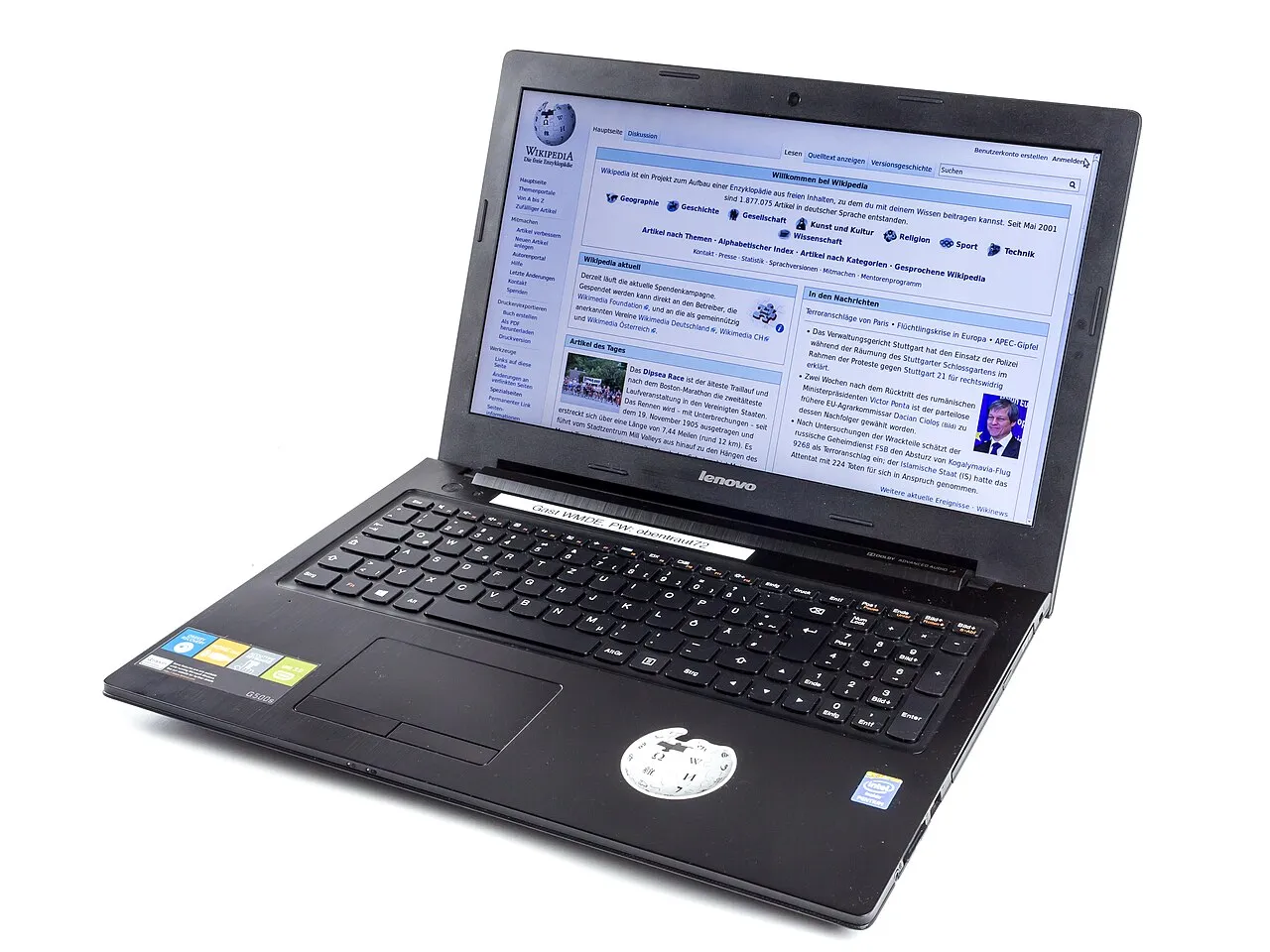
Archive laptop photograph illustrating device troubleshooting. No personal mailbox or live Outlook status is shown.
Mailbox storage and cloud storage need attention
Microsoft explains that full Microsoft cloud storage can prevent sending and receiving through Outlook.com, even where a user is looking at a different storage figure. The relevant account storage information matters more than the free disk space shown on an unrelated computer drive.
Before removing information, identify what is using the quota and whether important items need to be retained through an appropriate method. Randomly deleting files without understanding their relationship to the account can cause loss without solving the original problem. A storage message is a reason to inspect, not an instruction to erase everything.
A fictional classroom example helps distinguish the quantities: a laptop may have plenty of free local disk capacity while an online account has reached a service quota. The two numbers describe different resources. More free space on the laptop does not automatically increase the account's remote allowance.
If one expected message is missing
One missing message does not establish that all incoming mail has stopped. Check the account you are viewing, the relevant folders and any active search or display filter. If you have several accounts in one application, confirm which mailbox the sender used.
Ask the sender to check the address and any delivery error through an appropriate channel. Do not ask them to send sensitive information repeatedly to several alternate addresses merely to see which one works. A test can be useful without multiplying copies of private material.
Keep the question precise: is a specific message missing, are new messages delayed, or are all expected updates absent? Microsoft's guidance treats sending and receiving symptoms in context. A specific description helps support avoid investigating a different problem from the one you actually have.
If the browser works but an app does not
A working browser session can help narrow an app-specific problem, though it does not explain every difference automatically. The app may have its own connection, version, configuration or synchronisation state. Identify that environment rather than concluding that the mailbox's contents have disappeared.
Use the official instructions for the application and account type. Removing an account or reinstalling software can affect local information, so understand where important work is stored before taking those actions. A webmail guide cannot guarantee the behaviour of every desktop configuration or third-party mail application.
For a useful support note, record the working route and the failing route together. “Browser access succeeds, application shows this error” gives more information than a general demand to reset the account. It also helps preserve an available way to access necessary information while the narrower problem is investigated.
Understand a request-limit message cautiously
A message indicating too many requests generally calls attention to repeated requests or a service limit, but the exact context matters. It does not by itself prove that someone has stolen the account. Equally, it should not be ignored if other evidence suggests unauthorised activity.
Avoid rapid repeated retries or automated sign-in attempts as a troubleshooting method. Follow the relevant official instructions and any stated waiting or verification process. A limit is not an invitation to rotate identities, use another person's account or install a tool claiming to bypass the provider's controls.
If the message continues, capture the non-sensitive wording and the time it occurred. Preserve private diagnostic information for the appropriate support channel rather than posting everything publicly. A careful record gives support something useful without exposing account material to unrelated readers.
Protect important drafts while investigating
Before refreshing, signing out or closing an application containing unsent work, check how that work is saved. A visible editing area is not a universal guarantee that every recent change has reached the server. The relevant application's draft and synchronisation behaviour matters.
If the material must be retained temporarily through another approved method, keep it in a suitable private location. Do not upload confidential text to an unknown “email repair” website. A troubleshooting step should not create a new disclosure problem while attempting to solve the original access issue.
For students, use fictional text when practising the process. A mock homework enquiry can demonstrate drafts and sending without including a real person's personal information. Learning the workflow does not require experimenting on an important real submission at the last moment.
When to contact support
Contact the appropriate support route when the official guidance does not resolve the specific symptom, when an organisation-managed account needs administrative action or when the account's security process requires help. Distinguish those routes rather than assuming one public comment thread can address every situation.
A useful report includes the account type without revealing the password, the device and application, the exact non-sensitive error, the time and the relevant comparisons already tried. State what works as well as what fails. That information makes it easier to investigate the correct scope.
Avoid claiming a cause you have not established. “The browser returns an error after sign-in” is an observation. “Microsoft deleted all my mail” is a much broader conclusion requiring evidence. Starting with the observation gives support a clearer problem to investigate.
A short decision checklist
First identify the product and account type. Next check official status and known-issue information. Then match the symptom to the appropriate account, browser, storage or application guidance. Make one relevant change at a time, preserve important work and use the appropriate support channel if the problem remains.
Keep a brief record of actions and results rather than repeating unsuccessful steps indefinitely. The point is to reduce uncertainty, not to perform every possible reset. If a step affects data or organisational settings, stop and understand its consequences before treating it as routine.
More practical technology material is available in the RayTech educational guides. The same troubleshooting method applies to many online services: identify the scope, consult the right source, protect private information and describe evidence precisely. A clear explanation is more valuable than an unverified claim that everything is down.
Common questions
Does a search trend confirm a worldwide Outlook outage?
No. Search interest and individual complaints are reasons to investigate, not proof of a universal incident. Check Microsoft's current service-health information and the scope and time of any notice. This guide does not supply a live outage verdict.
Should I reset my password for every loading problem?
Choose the response that matches the actual message and official guidance. A browser-loading problem and a password problem are different categories. For managed accounts, follow the organisation's support process rather than changing unrelated settings.
Can full storage affect receiving as well as sending?
Microsoft's Outlook.com guidance explains that full Microsoft cloud storage can prevent both. Inspect the relevant account storage information rather than assuming local computer disk space answers the same question. Avoid deleting important material without understanding what the action affects.
Sources
- Microsoft official service-health page
- Microsoft Outlook.com known issues and workarounds
- Microsoft personal-account sign-in support
- Microsoft Outlook.com sending and receiving guidance
- Microsoft supported-browser guidance
Image credits: cover: Lectrician1, source, CC BY-SA 4.0. Resized and converted to WebP. inline: © Raimond Spekking / CC BY-SA 4.0 (via Wikimedia Commons), source, CC BY-SA 4.0. Resized and converted to WebP.
Found an error or an outdated detail? Report a correction with the article URL and original source.